
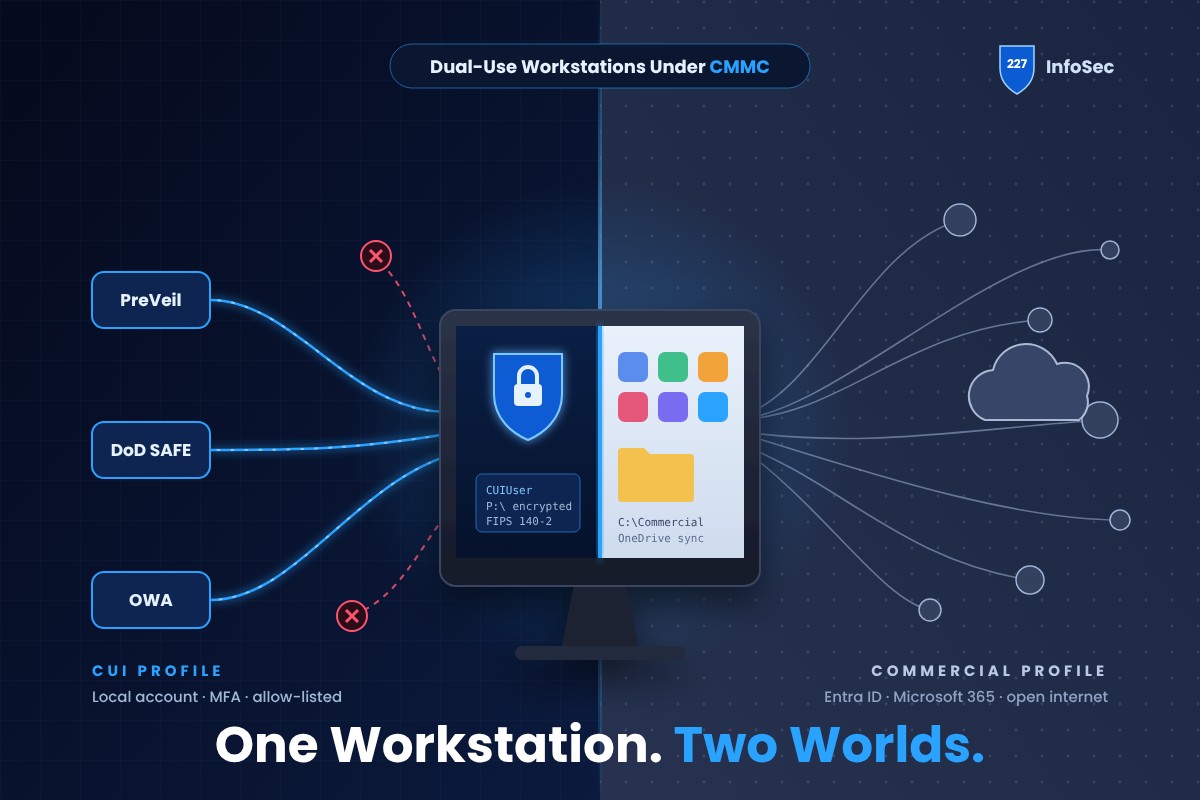
In a perfect world, every organization handling DoD contracts would issue dedicated machines for Controlled Unclassified Information (CUI). In reality, budgets and resources don’t always allow for separate hardware. That leaves IT with a tough question: how do you configure a single workstation so it can securely process CUI while still supporting day-to-day commercial work?
This post walks IT administrators through a practical example: a workstation running SolidWorks or AutoCAD where one user must work on both CUI and non-CUI designs. We’ll cover how to configure the system, which CMMC Level 2 practices each step supports, and how to write System Security Plan (SSP) statements that stand up to assessment.
Step 1: Enforce Identity Segregation
The foundation of a dual-use workstation is identity separation. Implement the following:
- Create a local Windows account (for example,
CUIUser) dedicated to all CUI work. - Keep the user’s Microsoft 365 Entra ID account for non-CUI commercial tasks.
- Enforce unique credentials for each account, with MFA on the CUI profile (for example, via PreVeil or a YubiKey).
CMMC practices to document in the SSP:
- AC.L2-3.1.1 – Limit system access to authorized users.
- IA.L2-3.5.3 – Use multifactor authentication.
Example SSP statement: “The dual-use SolidWorks workstation is logically segmented by user identity. The commercial account operates in the non-CUI environment, while the CUI local account enforces MFA and has access restricted to CUI resources only.”
Step 2: Secure Storage with PreVeil
Once identities are separated, storage must follow suit. Implement the following:
- Install the PreVeil client only under the CUI account.
- Require that all CUI files be stored exclusively in PreVeil Drive.
- Apply NTFS permissions so only
CUIUsercan access PreVeil storage. - Enable BitLocker (or FileVault on macOS) in FIPS 140-2 mode.
CMMC practices to document in the SSP:
- SC.L2-3.13.11 – Employ FIPS-validated cryptography when used to protect the confidentiality of CUI.
- SC.L2-3.13.16 – Protect the confidentiality of CUI at rest.
- MP.L2-3.8.1 – Protect system media containing CUI.
Example SSP statement: “PreVeil is installed and configured under the CUI user profile only. PreVeil Drive provides end-to-end encrypted storage. NTFS permissions prevent CUI from being saved to the commercial profile, and company policy and training ensure users do not copy or move CUI to unauthorized locations. The CUI profile has no Microsoft 365 license, which removes the ability to store CUI in OneDrive. The workstation’s drive is protected with FIPS-validated data-at-rest encryption.”
Step 3: Application Control
Limiting what software can run on the CUI profile reduces the attack surface. Use AppLocker or WDAC to allow only:
- The PreVeil client
- SolidWorks / AutoCAD
- Word, Excel, or LibreOffice (offline, no cloud sign-in)
- A single hardened browser instance configured for DoD SAFE and OWA; block all other browsers.
CMMC practices to document in the SSP:
- AC.L2-3.1.5 – Employ the principle of least privilege.
- CM.L2-3.4.8 – Apply a deny-by-exception (blacklist) or permit-by-exception (whitelist) policy to prevent the use of unauthorized software.
Example SSP statement: “The CUI user profile is configured to enforce application whitelisting. Only approved software (SolidWorks/AutoCAD, PreVeil, Word, Excel) is permitted to execute. Internet browsing is restricted to PreVeil, DoD SAFE, and OWA.”
Step 4: Network Segmentation
Even on the same machine, network behavior must be distinct for each profile. Implement the following:
- Place the workstation in a CUI VLAN with monitoring enabled.
- Configure Windows Firewall rules per profile:
- CUI account: outbound HTTPS only to PreVeil, DoD SAFE, and OWA.
- Commercial account: standard internet access.
- Block peer-to-peer, SMB, and RDP except from authorized admin systems.
CMMC practices to document in the SSP:
- SC.L2-3.13.1 – Monitor, control, and protect communications at external and key internal boundaries.
- SC.L2-3.13.6 – Deny network communications traffic by default and allow by exception.
- SI.L2-3.14.6 – Monitor systems, including inbound and outbound communications traffic, to detect attacks.
Example SSP statement: “Network segmentation is enforced via VLAN assignment. Per-profile host-based firewall rules limit external access to approved sites, and the boundary firewall further restricts external access. Protective DNS (PDNS) provides URL filtering. The CUI profile is limited to PreVeil, DoD SAFE, and approved OWA destinations. Logs are collected and reviewed for anomalous traffic.”
Step 5: SolidWorks/AutoCAD Licensing and File Separation
Licensing takes careful planning when the same software must be available in both environments. Implement the following:
- Install SolidWorks/AutoCAD for both accounts.
- CUI account: opens and saves designs in PreVeil Drive only.
- Commercial account: opens and saves designs in commercial directories.
- Use NTFS permissions to block the commercial account from accessing PreVeil storage.
CMMC practices to document in the SSP:
- AC.L2-3.1.3 – Control the flow of CUI in accordance with approved authorizations.
- MP.L2-3.8.7 – Control the use of removable media on system components.
Example SSP statement: “CUI SolidWorks/AutoCAD files are restricted to PreVeil storage under the CUI account and the CUI profile directory. The commercial profile cannot access or modify these files, enforced by NTFS permissions and user training.”
Step 6: Productivity Tools Without the Cloud
The CUI profile must not rely on Microsoft 365 cloud services. Three options work well:
- Office LTSC / perpetual license: Install Office LTSC 2021 or Office 2019 with a perpetual key. Disable OneDrive and Connected Experiences via Group Policy.
- Retail standalone (Word/Excel only): Purchase Office Home & Student 2021 or 2019, activate it with a product key, and bypass the Microsoft 365 sign-in. Configure policies to block internet and cloud sync.
- LibreOffice: A free, local-only option for environments that want maximum isolation.
CMMC practices to document in the SSP:
- SC.L2-3.13.11 – Protect documents with FIPS-validated encryption via PreVeil.
- SI.L2-3.14.1 – Identify, report, and correct system flaws in a timely manner (patch offline Office installs through organizational policy).
Example SSP statement: “The CUI account uses productivity tools (Word/Excel or LibreOffice) licensed via perpetual or standalone retail keys. These tools are configured for offline use without Microsoft 365 sign-in or OneDrive synchronization. All CUI files created in these tools are stored exclusively in the CUI profile or in the PreVeil encrypted drive.”
Step 7: Evidence Preparation
Configuration alone isn’t enough. CMMC requires proof. Prepare:
- Boundary and host firewall exports showing per-profile outbound rules
- Screenshots of NTFS permissions on PreVeil folders and the CUI profile
- AppLocker/WDAC policy exports
- Network diagrams with VLAN assignments
- User training acknowledgments
Conclusion
A dual-use workstation can meet CMMC requirements when it’s configured carefully. By enforcing identity segregation, limiting applications, securing storage, and tightening network rules, IT can protect CUI without separate hardware. With this approach, organizations can:
- Safeguard CUI in a mixed-use environment
- Demonstrate alignment with CMMC practices across the AC, IA, SC, MP, CM, and SI domains
- Provide clear SSP statements and evidence that satisfy assessors
A dedicated CUI-only workstation is always the cleanest path, but a dual-use setup is defensible when it’s backed by strong technical controls and thorough documentation.
-Lamar Clapham
Need help designing or documenting a dual-use CUI environment? Contact 227 InfoSec to talk with our CMMC team.

![A hooded skeletal assessor holding a lantern and an SSP binder in a moonlit graveyard, with tombstones for failed CMMC controls 3.1.1[a], 3.4.6[a] and 3.4.7, under the title Tales from the Assessment, Part 1: Define & Identify](https://227infosec.com/wp-content/uploads/2026/10/tales-from-the-assessment-part-1-v2.jpg)